The short answer
A Mac under heavy load rarely tells you it is struggling. The fan gets loud, you get used to it, and you keep working. Sabja shows your Mac’s Thermal State in the menu bar, so you notice when it rises and can give it a break before months of heavy load become a habit.
The MacBook that never got a break
I bought a 13-inch MacBook Air (2017) for ₹49,990. It was my work machine, and I used it hard: long days and many apps open at once.
It ran hot most days. The fan would spin up and stay loud. I told myself that was normal, that the fan was doing its job, and that I would deal with it later. I worked that way for months.
Then one morning, it didn’t turn on.

What the repair would cost
The service center quoted a new logic board. The Mac was out of warranty:

The quoted repair was ₹34,500 for a laptop that originally cost ₹49,990—about 69% of its purchase price.
I want to be honest: I will never know if heat alone did it. Logic boards can fail for many reasons. But I ignored every sign my Mac gave me for months, and I wish I had noticed sooner. That regret is why Sabja exists on the Mac.
Why the risk is bigger now: AI on your Mac
My MacBook Air was busy with ordinary work. A Mac today is often asked to do far more, for far longer:
- AI models running on the Mac itself. Local chat models, image generators, and transcription tools can keep the processor and graphics busy for as long as they run.
- Coding assistants and agents. They index projects, run builds, and run tests in the background while you keep working.
- Many AI apps at once. A chat app, a coding tool, a browser full of tabs, and a video call can all compete for the same chip.
Modern Macs, especially with Apple silicon, are very good at handling heat. They manage it by speeding up fans or, on fanless models, by slowing down to stay within safe limits. But both are signs of sustained pressure. Apple notes that fans speed up during intensive tasks and turn on sooner when the room is warm (Apple Support). A short burst is fine. Hours of it every day, in a warm room, on a soft surface, is the habit I wish I had changed.
The fan is not a warning system
Fan noise is easy to ignore, and after a week you stop hearing it. A fanless MacBook Air gives you even less: it simply gets slower. macOS doesn’t show you a clear status when your Mac is under sustained thermal pressure.
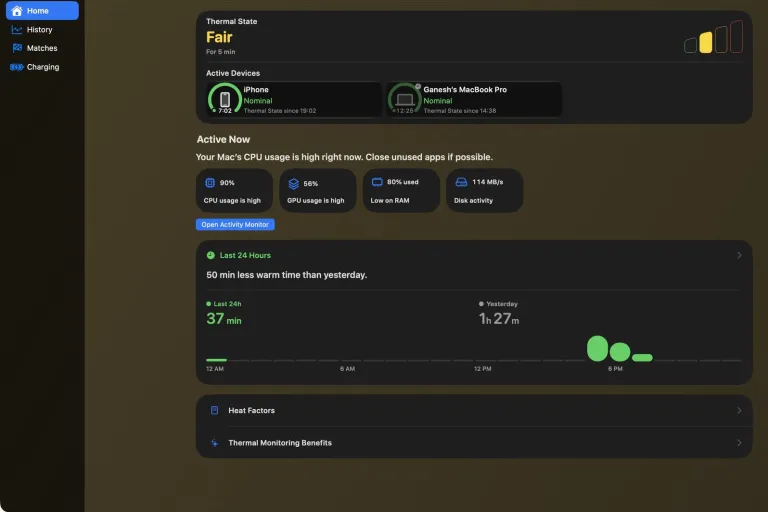
That is the gap Sabja fills. It reads Apple’s own Thermal State, the signal macOS gives apps when the system is under thermal pressure, and shows it plainly: Nominal, Fair, Serious, or Critical. It is a measure of thermal pressure, not a reading in degrees.
What Sabja does on a Mac
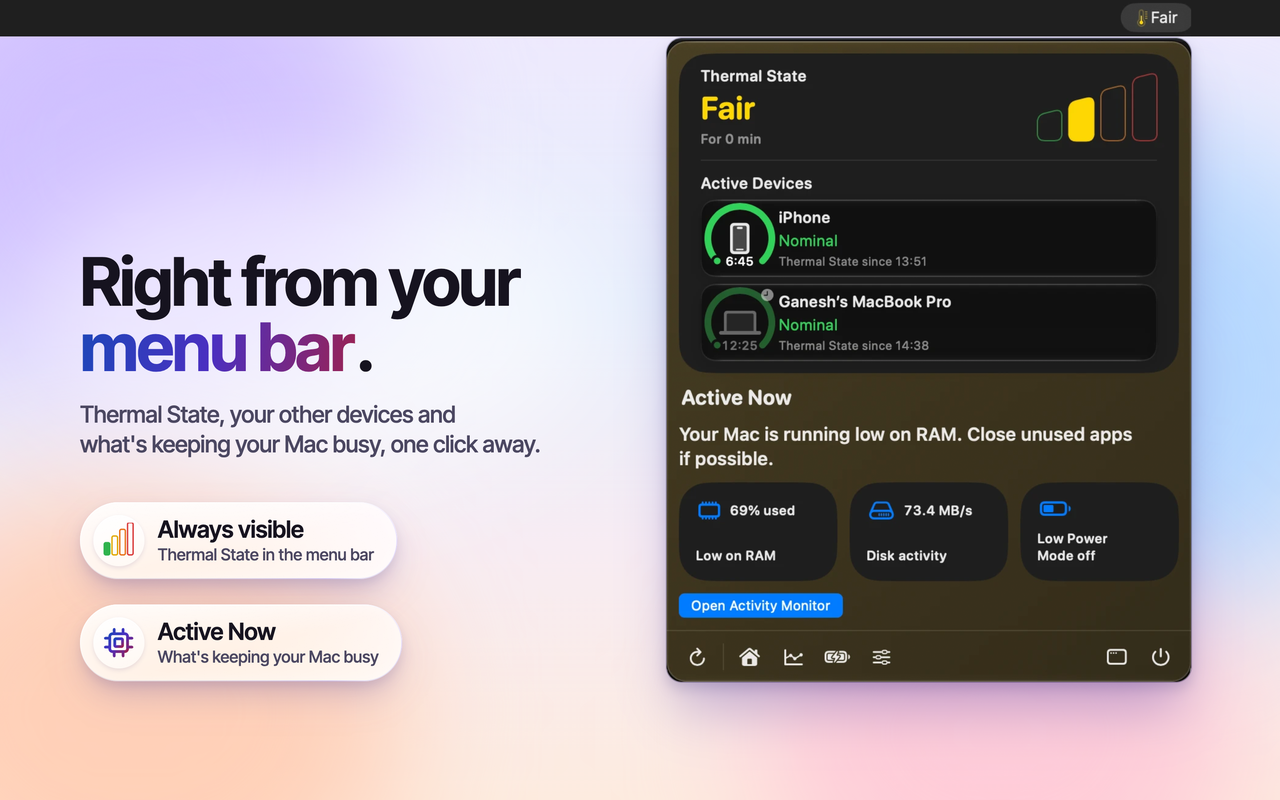
- Thermal State in the menu bar. Glance up while you work, instead of guessing from fan noise.
- Active Now. When Thermal State rises, see whether the processor, graphics, memory, or disk is busy, and open Activity Monitor in one click to find the app responsible.
- Calm alerts with Sabja Pro. Get a heads-up when Thermal State reaches Fair, Serious, or Critical, even while you are focused in another app.
- History with Sabja Pro. See how much warm time your Mac had today and this week, and which app was in front when it happened.
- All your devices together. Your iPhone shows your Mac’s Thermal State too, so you can check a long AI job from across the room.
A simple routine for heavy Mac days
- Give it a hard, open surface. Apple recommends a stable surface with good ventilation, not a bed or blanket, and keeping vents clear (Apple Support).
- Watch Thermal State during long AI jobs. If it stays at Serious, pause or queue the job, close apps you aren’t using, and let your Mac settle.
- Mind the room. Avoid direct sun and hot rooms, and never leave a MacBook in a parked car.
- Plug in with care. Heavy work while charging adds heat. If Thermal State rises, ease the load until it settles.
- Check History once a week. Look for the app or time of day that keeps showing up, and change that one habit.
Who should have Sabja on their Mac
- Developers running local models, builds, or AI coding agents.
- Designers, video editors, and creators who export and render for long stretches.
- Students and professionals on older Macs, where a repair can cost more than the Mac is worth.
- Anyone whose MacBook is out of warranty and too important to lose for a week.
What Sabja can’t do
Sabja doesn’t cool your Mac, measure degrees, or diagnose hardware. Apple advises against using third-party apps to diagnose hardware problems, and so do I: if your Mac runs hot or its fans stay loud without heavy work, follow Apple’s guidance or contact Apple. Sabja can’t promise your Mac will never fail. What it can do is make sustained thermal pressure easy to notice, so you can make better choices every day.
A ₹34,500 repair quote made me realise how expensive a hardware failure can be. Sabja helps make sustained thermal pressure easier to notice, so you can take care of your Mac along the way.
Put Thermal State in your Mac’s menu bar
Start with Sabja’s free Thermal State view. Add Sabja Pro for alerts and History on your Mac, iPhone, and iPad.
Get Sabja on the App Store