The short answer
- Remove the heat sources: heavy apps, the charger, the case, and the sun.
- If iOS shows a temperature warning, Apple recommends turning the iPhone off and moving it somewhere cooler.
- Never cool it with a fridge, freezer, ice pack, or water.
Step by step
- Stop the heavy task. Close the game, stop recording video, and turn off Personal Hotspot or navigation if you can.
- Unplug it. Disconnect the cable or take it off the wireless charger. Charging adds heat.
- Take off the case. A case traps heat. Apple specifically suggests removing it if the phone gets hot while charging.
- Move it out of the heat. Get it out of direct sunlight and out of the car. Put it on a hard surface in the shade, not on a bed or in a pocket.
- Turn it off if you see a warning. If the “Temperature” warning screen appears, Apple recommends turning the device off and letting it cool somewhere cooler.
- Wait before heavy use or charging. Give it time to settle before you start the game again or plug it back in.
What not to do
- No fridge or freezer. A sudden temperature drop can cause condensation inside the phone.
- No ice packs or water. Same risk, plus water damage.
- Don’t keep charging it while it’s hot, even if charging has only slowed.
- Don’t push through the warning. It’s a protection, not a suggestion.
How to tell it has cooled down
- The temperature warning is gone and the screen brightness is back to normal.
- A “Charging On Hold” message on the Lock Screen has cleared. Apple says charging resumes once the device returns to normal temperature.
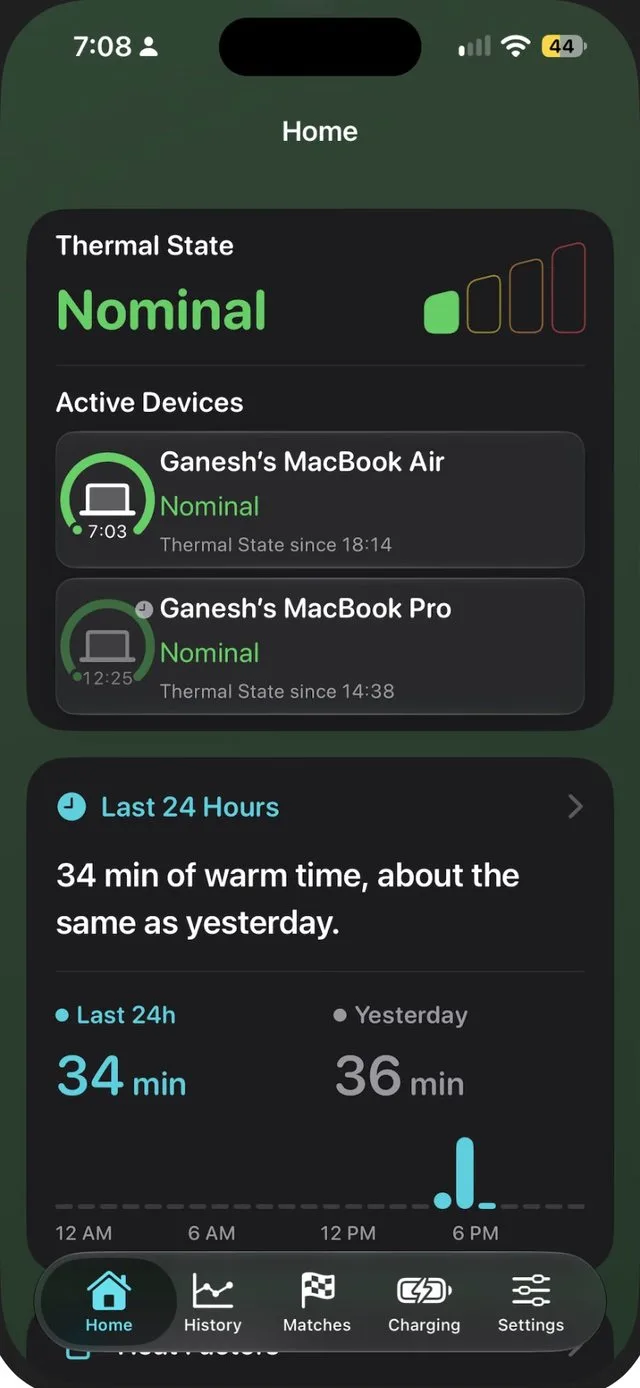
- Thermal State is back to Nominal. Sabja shows this on Home, on the Lock Screen widget, and on Apple Watch.
What the temperature warning means
When an iPhone gets too hot, iOS protects its components by slowing charging, dimming the display, reducing performance, and limiting the camera and radios. If it passes a further threshold, a full-screen warning appears. Apple notes the iPhone might still be able to make emergency calls (Apple). During navigation, it may turn off the display but keep giving spoken directions.
Know before it gets that far
Sabja reads Apple’s Thermal State. With Sabja Pro, you get an alert when it reaches Fair, Serious, or Critical, so you can take a break before iOS steps in.
Get Sabja on the App StoreIf it keeps overheating
Warmth during setup, a big update, restoring a backup, wireless charging, games, or high-quality video streaming is normal, according to Apple. If your iPhone gets hot while you’re barely using it, check Settings › Battery for an app using a lot of battery, update iOS, and restart. If it still happens, contact Apple Support.
Frequently asked questions
Can I put an overheating iPhone in the fridge?
No. A sudden temperature drop can cause condensation inside the phone. Let it cool at room temperature in the shade, with the case off and the charger unplugged.
How long does an iPhone take to cool down?
It depends on how hot it got and where it is. With the heavy task stopped, the charger unplugged, the case off, and the phone in the shade, it cools much faster than in a pocket or a car.
Can I use my iPhone while it cools?
Light use is fine if there’s no temperature warning. Avoid games, video recording, and charging until it settles.